AI Cost Management
AI Cost Management gives you visibility into your organization’s AI model spend. It records events for every request that passes through AI Gateway, attributes each event to a user, group, or team, prices it against the model catalog, and surfaces the data in real-time dashboards.
You can set up budgets with notification thresholds to alert your team before spend reaches a ceiling. Use attribution to break spend down by user, application, or any custom dimension that you want to define with tags.
Key references
Analytics and debugging
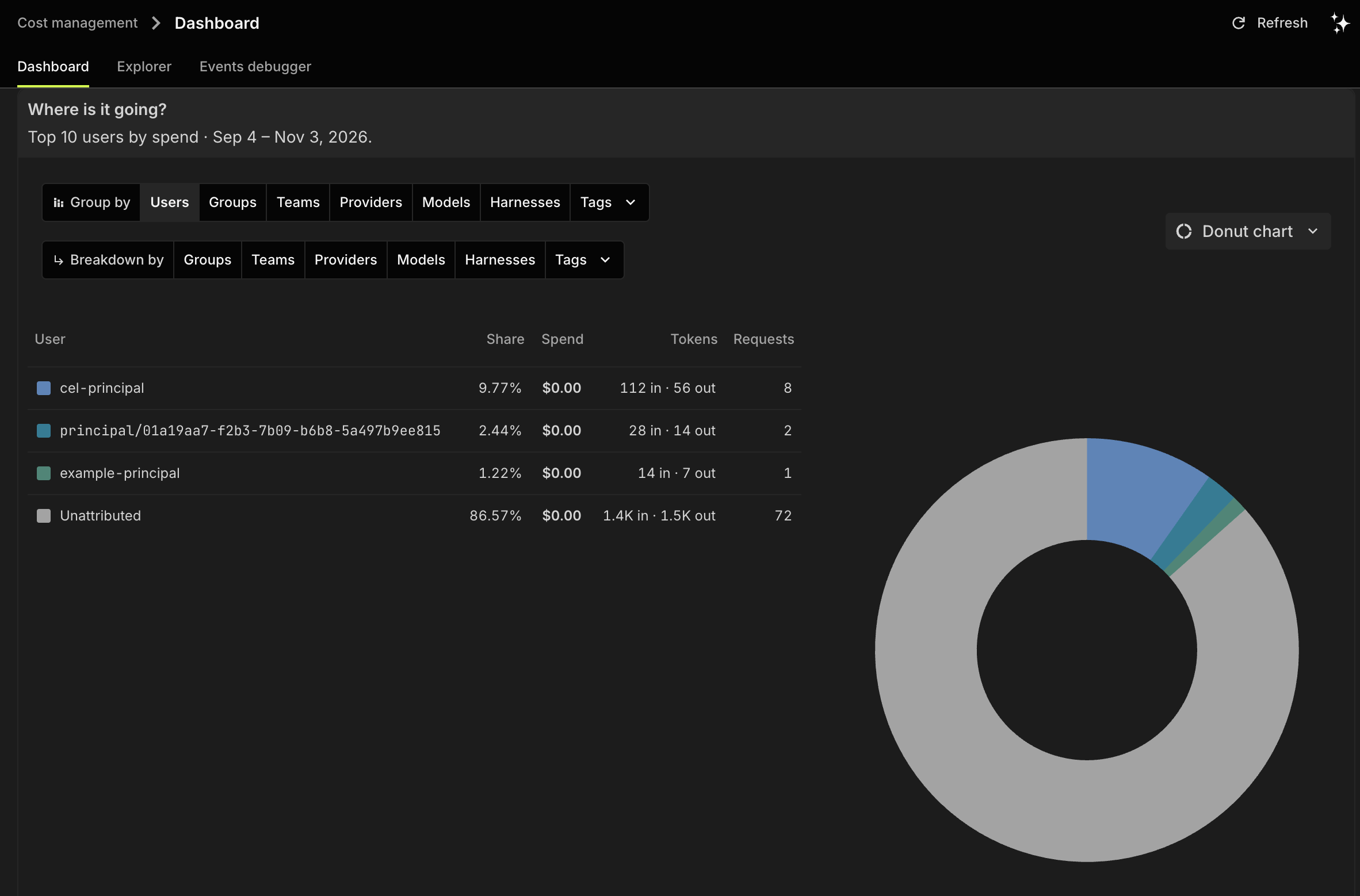
Explore spend on the Dashboard, break down usage by user or model in the Explorer, and inspect individual events in the Events debugger.
Budgets
Create budgets with spend ceilings and notification thresholds. Monitor how spend tracks against each budget across the organization.
Attribution
Understand how each usage event is attributed to a subject, group, and team, and how to add custom tags for dimensions your teams care about.
Price catalog
Configure model prices that AI Cost Management uses to calculate the cost of each request. Add organization-level overrides for negotiated rates.
Exports
Download usage events and FOCUS cost-and-usage data as CSV or Parquet files, either once for a specific range or on a repeating schedule.
API reference
Browse the full REST API for AI Cost Management: list and query usage events, manage exports, budgets, notification channels, and the price catalog.
Frequently asked questions
Does AI Cost Management block requests when a budget is exceeded?
No. Budgets track spend and send notifications when thresholds are crossed, but they don’t block or rate-limit requests. Budget enforcement is planned for a future release.
Why does a request show $0 cost?
The model had no price configured when the request ran. An omitted cost and a reported zero cost are stored the same way. To price future requests, add the model to the price catalog or set cost fields on the AI Model target in AI Gateway.
How fresh is the data in the dashboard?
Events reach the views shortly after a request completes. An event that arrives more than one hour after its recorded time is marked late and can change totals already shown.