Kong Konnect MCP Server
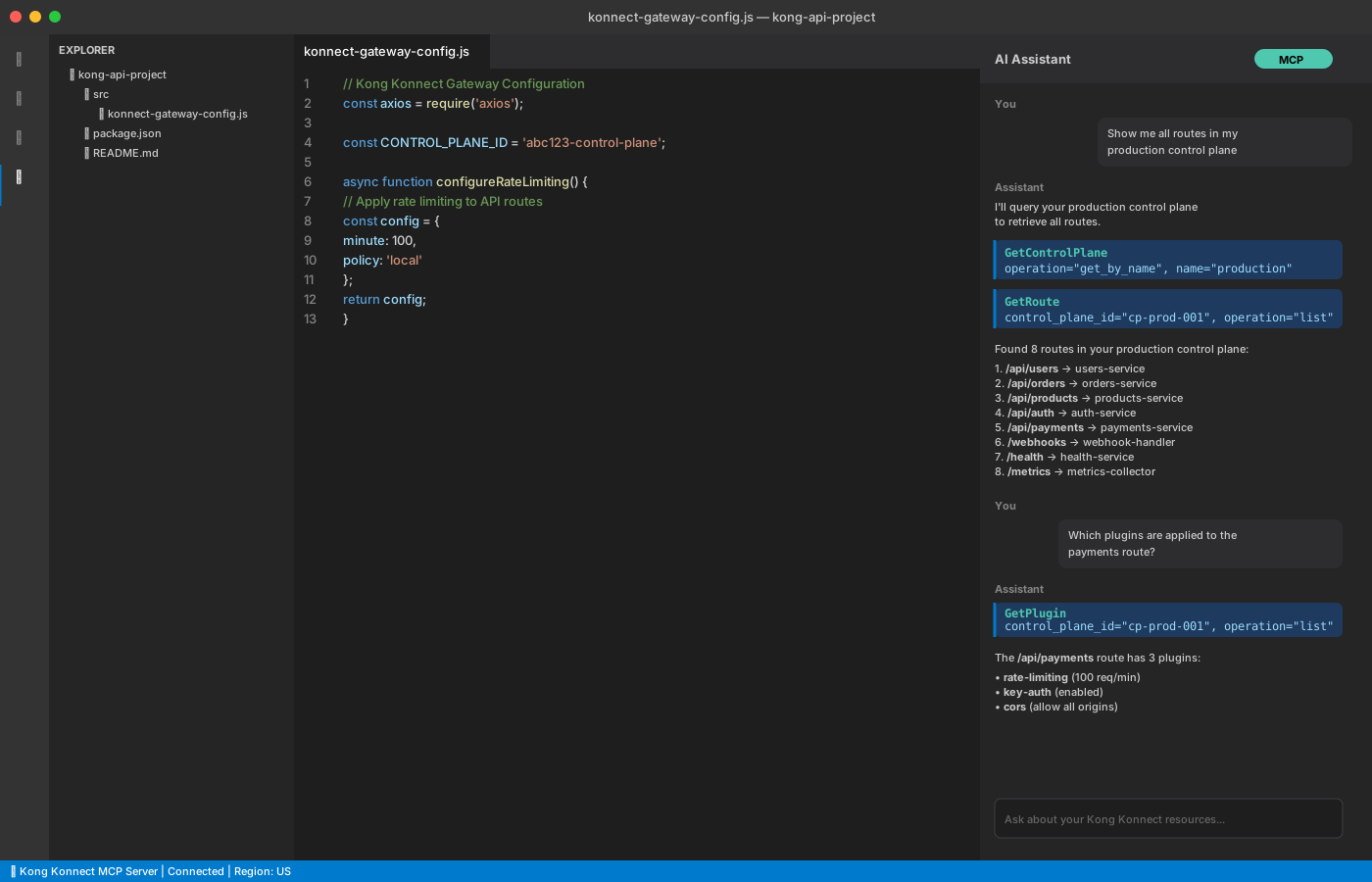
The Kong Konnect MCP Server enables developers to manage API infrastructure and debug performance issues directly from their development environment. You can also plug in Kong Konnect MCP Server to your AI agents to automate tasks like configuration management and performance troubleshooting.
The same tools available in Kong Konnect MCP Server power KAi (Kong’s AI assistant), an in-product AI assistant for Kong Konnect.
Kong Konnect MCP server is in active development. Expect continuous updates and new tools to be added regularly.
Use cases
The Kong Konnect MCP Server enables several workflows for managing and debugging your API infrastructure:
- Kong Konnect entity management: Query control planes, services, routes, consumers, consumer groups, plugins, and vaults.
- API debugging: Create debug sessions with active tracing to investigate performance issues and identify bottlenecks.
- Analytics and monitoring: Query API request data with filters for time range, status codes, consumers, services, and routes.
- Kong documentation search: Search Kong’s documentation for configuration guidance and troubleshooting steps.
When should I use an MCP Server?
Use the Kong Konnect MCP Server when:
- You want to manage Konnect resources from your IDE or terminal
- You need to debug API performance issues with active tracing
- You prefer working with AI assistants for infrastructure tasks
- You need to query analytics and traffic patterns programmatically
How the Kong Konnect MCP Server works
Kong Konnect MCP Server provides programmatic access to your Konnect resources through the Model Context Protocol. The server exposes specialized tools that AI assistants can use to query Kong Gateway entities, analyze traffic, debug performance issues, and search documentation.
You can connect to the MCP server from:
- IDEs with MCP client support (VS Code, Cursor, IntelliJ)
- AI assistants like Claude and GitHub Copilot
- Claude Code CLI for terminal-based workflows
- Any MCP-compatible client application
The server connects to Konnect backend services to retrieve Kong Gateway configuration, analytics data, active tracing sessions, and Kong’s documentation. This allows AI assistants to provide contextual assistance for debugging, configuration, and operational tasks.

Authentication and access
The Kong Konnect MCP Server uses token-based authentication to ensure secure access to your Konnect resources. You can authenticate using either a Personal Access Token (PAT) or a Service Accout Access Token, depending on your use case.Personal Access Token
The MCP server can authenticate using your Personal Access Token (PAT), which means it only accesses resources you have permission to view. Create a token by opening the Kong Konnect tokens page and selecting Generate Token. All queries respect your organization’s role-based access controls and regional data boundaries.
System Account Access Token
For automated workflows, you can also use a System Account Access Token. SPATs are tied to specific service accounts with defined permissions, allowing secure machine-to-machine authentication without user intervention.
Regional server endpoints
The MCP server is deployed regionally. Connect to the server in the same region where your Konnect resources are deployed.
|
Region |
Server URL |
|---|---|
| United States (US) |
https://us.mcp.konghq.com/
|
| Europe (EU) |
https://eu.mcp.konghq.com/
|
| Australia (AU) |
https://au.mcp.konghq.com/
|
Default endpoint
The regional endpoint defaults to US region.
Organizations using multiple Kong Konnect regions require separate MCP server connections for each region. Resources cannot be accessed across regions from a single connection.
Organization settings
Kong Konnect MCP Server access is enabled by default. Organization administrators can disable it from the Organization Settings.
Installation
Configure the MCP client of your choice by adding the Kong Konnect MCP Server with your regional URL and PAT. Select your preferred client below for specific installation instructions.

Claude Code CLI
Configure MCP server using the claude mcp add command or by editing ~/.claude.json

Visual Studio Code
Add MCP server configuration through VS Code’s Command Palette and MCP settings


GitHub Copilot - VS Code
Set up MCP server for GitHub Copilot extension in Visual Studio Code
GitHub Copilot - JetBrains
Configure MCP server for IntelliJ IDEA, PyCharm, WebStorm, and other JetBrains IDEs

Available tools
The Kong Konnect MCP Server provides tools for managing Kong Gateway entities, debugging performance, and accessing documentation. Tool availability depends on your user permissions and organization entitlements.
|
Tool category |
Tools |
Description |
|---|---|---|
| Gateway entities | GetControlPlane, GetControlPlaneGroup, GetConsumer, GetConsumerGroup, GetService, GetRoute, GetPlugin, GetVault | Query and manage Kong Gateway configuration |
| Debugging | CreateDebugSession, ActiveTracingSession | Create tracing sessions and analyze performance |
| Analytics | GetAnalytics | Query API requests and traffic patterns |
| Documentation | KnowledgeBaseSearch | Search Kong documentation and best practices |
Common usage patterns
The following workflows combine multiple Kong Konnect MCP Server tools to accomplish specific debugging and management tasks. Each pattern shows the exact sequence of tool calls needed, which IDs to extract, and how to pass them to subsequent steps.Pattern 1: Debugging performance issues
Create a debug session and analyze trace data to identify bottlenecks.
1. GetControlPlane (operation="list" or "get_by_name")
   → Select target control plane
   → Extract control_plane_id

2. CreateDebugSession (
     control_plane_id=<from_step_1>,
     http_path="/slow-endpoint",
     http_latency=">=1000ms",
     session_duration=60
   )
   → Confirm with user
   → Extract debug_session_id

3. ActiveTracingSession (
     control_plane_id=<from_step_1>,
     debug_session_id=<from_step_2>,
     operation="fetch_status"
   )
   → Wait for status="completed"

4. ActiveTracingSession (
     control_plane_id=<from_step_1>,
     debug_session_id=<from_step_2>,
     operation="summarize_session"
   )
   → Analyze bottlenecks and latency distribution
Pattern 2: Investigating an API endpoint
Trace an API path through control plane, route, service, and plugin configuration.
1. GetControlPlane (operation="get_by_route", path="/api/users")
   → Extract control_plane_id

2. GetRoute (control_plane_id=<from_step_1>, operation="list")
   → Find route matching the path
   → Extract service_id from route

3. GetService (control_plane_id=<from_step_1>, operation="get_by_id", service_id=<from_step_2>)
   → Review upstream configuration

4. GetPlugin (control_plane_id=<from_step_1>, operation="list")
   → Check plugins affecting the route/service
Pattern 3: Consumer-specific analysis
Identify failing consumers and analyze their request patterns.
1. GetControlPlane (operation="list")
   → Select target control plane
   → Extract control_plane_id

2. GetAnalytics (
     time_range="24H",
     operation="query_api_requests",
     status_codes=[500, 502, 503]
   )
   → Identify top failing consumers from response

3. GetConsumer (
     control_plane_id=<from_step_1>,
     operation="get_by_id",
     consumer_id=<from_step_2_response>
   )
   → Review consumer configuration

4. GetAnalytics (
     time_range="24H",
     operation="get_consumer_requests",
     consumer_id=<from_step_3>,
     failureOnly=true
   )
   → Analyze consumer-specific failures

5. GetPlugin (
     control_plane_id=<from_step_1>,
     operation="list"
   )
   → Filter for consumer-scoped auth plugins
Pattern 4: Configuration audit
Audit Kong Gateway configuration across all control planes.
1. GetControlPlane (operation="list")
   → Iterate through all control planes

2. For each control plane:
   a. GetService (control_plane_id=<current>, operation="list")
   b. GetRoute (control_plane_id=<current>, operation="list")
   c. GetPlugin (control_plane_id=<current>, operation="list")
   d. GetConsumer (control_plane_id=<current>, operation="list")
   e. GetVault (control_plane_id=<current>, operation="list")

3. Aggregate and analyze configurations across all control planes
What's new in Kong Konnect MCP Server
The following are the latest changes in Kong Konnect MCP Server:
- Public Beta release (December 19, 2025)
For a complete changelog of all Kong Konnect MCP Server releases, see the Kong Konnect MCP Server changelog.
Frequently asked questions
Can I disable MCP access for my organization?
MCP server access is enabled by default for all organizations. Organization admins can disable this from Organization > Settings, after which no user will be able to access the MCP server.
How does user access control work for MCP tools?
Access to MCP tools is based on the permission levels of the user whose PAT is used for authentication.
How should I structure my tool workflows?
Start with GetControlPlane to identify the correct control plane before accessing nested resources. For get_by_name operations that return no results, fall back to list and perform fuzzy matching. Always confirm CreateDebugSession parameters with the user before starting, and check fetch_status until the session reaches "completed" before analyzing traces.
What IDs should I extract for downstream tool use?
Extract these IDs as you work through tool chains: control_plane_id, debug_session_id, consumer_id, service_id, route_id. Use debug_session_inputs from FetchAlertingEventDetails directly with CreateDebugSession for optimal alert investigation.
How can I improve tool performance?
Apply specific filters in GetAnalytics to reduce data volume and improve response times. Check entity enabled flags when troubleshooting, as disabled entities can cause failures.
I’m experiencing authentication errors. What should I check?
Verify PAT validity, check your organization hasn’t disabled MCP access, and ensure the token has required permissions.
I can’t connect to the MCP server. What should I do?
Check your internet connection, verify the regional server URL is correct, and ensure your firewall isn’t blocking mcp.konghq.com.
A tool doesn’t appear in my tool list. Why?
Verify you have the required permissions, check your organization has the necessary entitlements, confirm feature flags are enabled, and restart your MCP client.
Tools return empty results for resources I know exist. What’s wrong?
Verify you’re connecting to the correct regional server URL, check which region your resources are deployed in via the Kong Konnect UI, and restart your MCP client after URL changes.
Tool execution is failing. How do I troubleshoot?
Check parameter correctness, verify you have resource access permissions, wait if you’re rate limited, and confirm the resource exists.